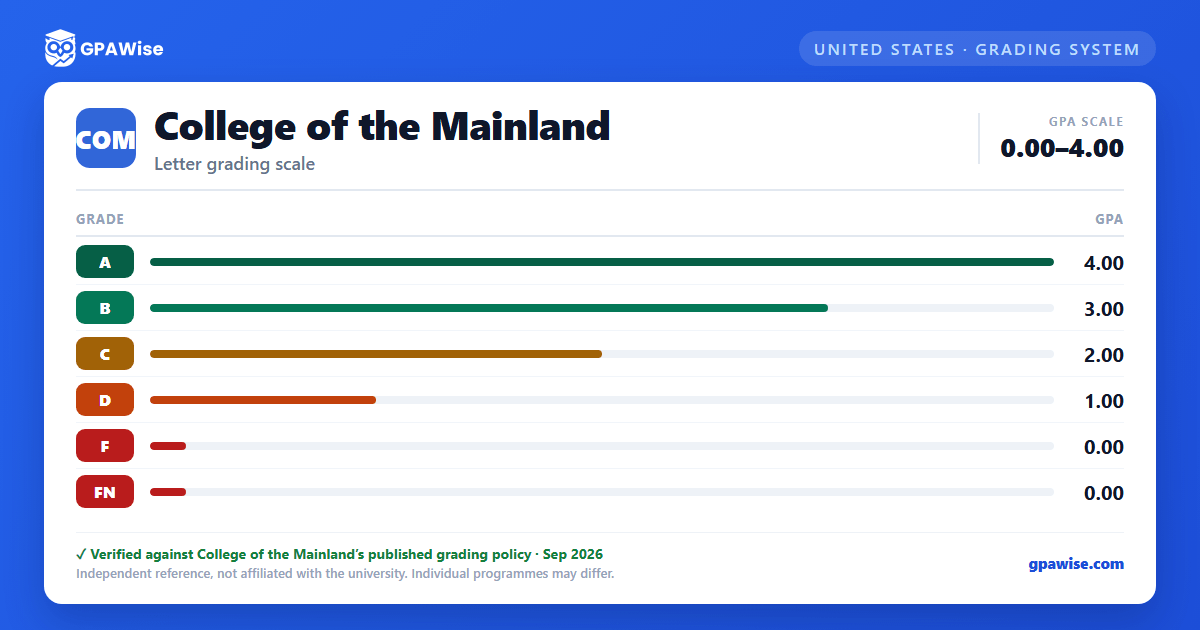
GPA Calculation
College of the Mainland computes GPA on a 4.0 scale. Grades of “I” (Incomplete) and “W” (Withdrawal) are not counted as hours attempted in computing the GPA, and grades earned in developmental courses are not used to compute the official GPA (though they are recognized for financial aid purposes).
When a course is attempted more than once, only the highest grade received is used to compute the cumulative GPA; the lower grade remains on the transcript but is excluded from the GPA calculation.
Source:
College of the Mainland Academic Catalog 2026-2027, Grades page — verified Aug 2026
Academic Standing
A student is in Good Academic Standing with a cumulative GPA of 2.0 or higher, assessed at the end of each semester.
- Academic Warning: cumulative GPA falls below 2.0.
- Academic Probation: semester and cumulative GPA both remain below 2.0 while on Academic Warning; enrollment is capped at 3 courses (up to 9 credit hours) for that semester.
- Academic Dismissal: semester and cumulative GPA both remain below 2.0 while on Academic Probation; the student may not re-enroll for one full 16-week semester.
Source:
College of the Mainland Academic Catalog 2026-2027, Grades page — verified Aug 2026
Frequently asked questions
Can I save my semesters and track my CGPA at COM?
Yes. After you calculate a semester's GPA, click "Save as semester" to add it to the built-in CGPA tracker, which then computes your cumulative GPA across every saved semester using the standard weighted formula (Σ SGPA × credits ÷ Σ credits). You can save semesters by course (full breakdown) or quick-add a past semester with just the SGPA and credit hours. Locking, renaming, and deleting saved semesters are all supported, and the tracker shows a running CGPA plus a trend arrow versus your previous semester.
How do I convert SGPA to CGPA at COM?
Your CGPA is the credit-weighted average of every semester's SGPA. The formula is: CGPA = (SGPA₁ × credits₁ + SGPA₂ × credits₂ + … + SGPAₙ × creditsₙ) ÷ (credits₁ + credits₂ + … + creditsₙ). On this page, add each semester to the CGPA tracker (either by course or as a quick SGPA + credit-hours entry) and the calculator runs the conversion for you on every save, edit, and delete — no manual arithmetic required.
Can I add past semester GPAs without entering every course?
Yes. On the My CGPA Tracker tab, click "Add semester" and choose the quick-add option. You enter just the SGPA and the credit hours for that semester — no course-by-course breakdown required. It works as a GPA calculator with previous semesters support, or as a GPA calculator without course details when you only remember the SGPA from your transcript. Quick-added and course-by-course semesters can be mixed freely; both contribute to your CGPA using the same credit-weighted formula.
Is my CGPA tracker data sent to your servers?
No. Your saved semesters are stored locally in your browser only — nothing is transmitted to GPAWise. A "Clear all tracker data" button is always available on the tracker tab to wipe the data on demand.
Is this College of the Mainland (COM) GPA calculator free?
Yes — GPAWise is completely free to use. There's no signup, no paywall, and your inputs stay in your browser.